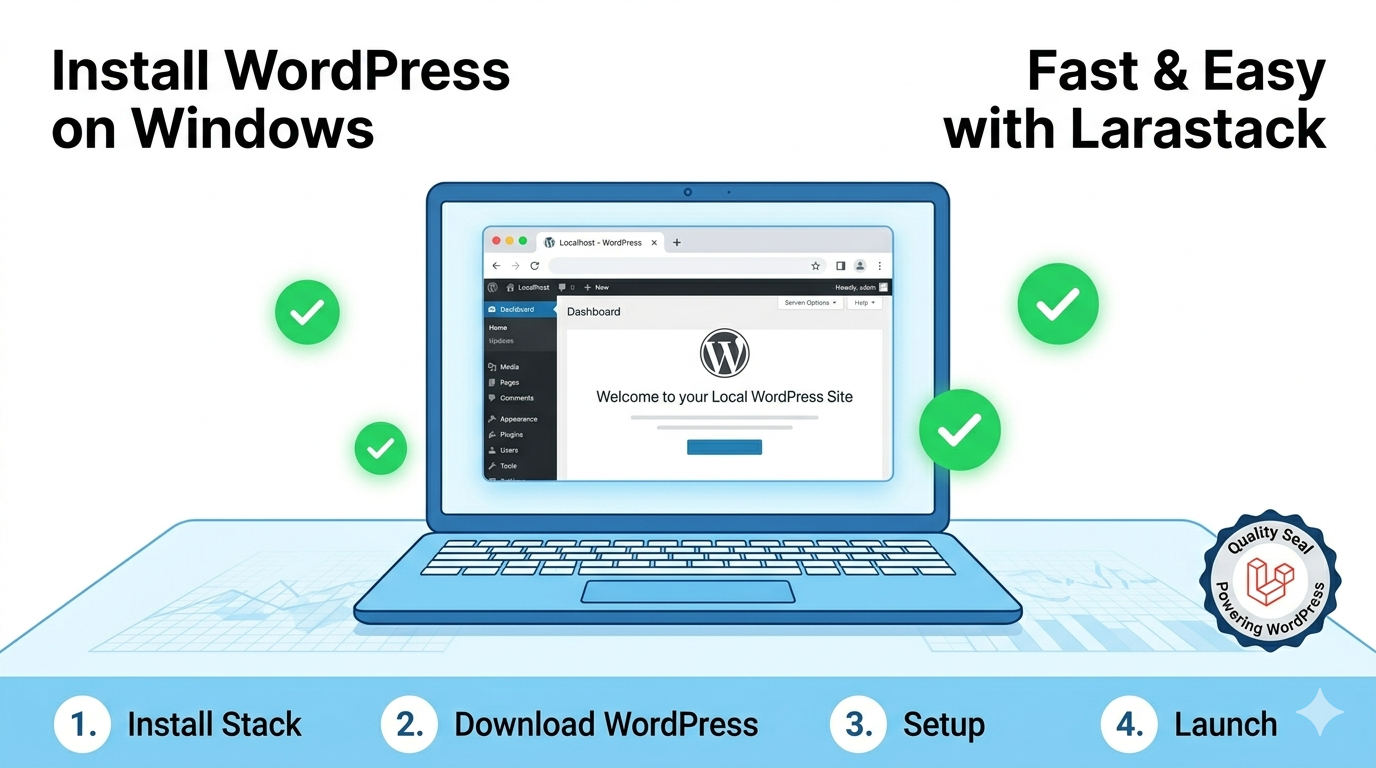
How to Run WordPress Locally on Windows Using Larastack (Step-by-Step 2026)
Why Run WordPress Locally?
Local WordPress development lets you build, test, debug, and experiment safely — without touching your live website. Install plugins, switch themes, test custom code, and break things freely before pushing any changes to production.
Most developers reach for LocalWP or DevKinsta for this. But if you're already using Larastack as your PHP environment, you don't need any additional tools. Larastack handles WordPress perfectly.
What You Need
- Larastack (free) — download at larastack.click/download
- WordPress (free) — download at wordpress.org/download
- A web browser
That's it. No other software required.
Step 1: Start Larastack
Download Larastack, extract it to any folder, and click Start All in the control panel. PHP 8.2 and MySQL 8.0 will be running within 2 seconds.
Step 2: Create a WordPress Database
Open phpMyAdmin in your browser at: http://localhost:8084/phpmyadmin
Log in as root with no password. Click New in the left sidebar, name your database wordpress_local, set the collation to utf8mb4_unicode_ci, and click Create.
Step 3: Download and Place WordPress Files
Download the latest WordPress zip from wordpress.org. Extract it into your Larastack web root folder — for example: larastack\www\wordpress
Step 4: Configure wp-config.php
In your WordPress folder, rename wp-config-sample.php to wp-config.php. Open it and update the following values:
define( 'DB_NAME', 'wordpress_local' ); define( 'DB_USER', 'root' ); define( 'DB_PASSWORD', '' ); define( 'DB_HOST', '127.0.0.1:3308' );
Important: Larastack's MySQL runs on port 3308, not the default 3306. The DB_HOST value must include the port number.
Step 5: Run the WordPress Installer
Open your browser and navigate to: http://localhost:8084/wordpress
WordPress will display the 5-minute installation wizard. Enter your site title, create an admin username and password, and click Install WordPress.
Your local WordPress site is now live.
Recommended Plugins for Local WordPress Development
Once your local site is running, install these plugins to improve your development workflow:
Query Monitor — Shows all database queries, hooks, HTTP requests, and PHP errors directly in the WordPress admin bar. Essential for performance debugging.
WP Migrate — Makes it easy to push your local database to a staging or production server when you're ready to go live.
User Switching — Lets you instantly switch between WordPress user accounts without logging out, perfect for testing different user roles.
Tips for Local WordPress Development With Larastack
Always use a different database for each WordPress project to keep data isolated. Name them clearly: wordpress_clientname, wordpress_portfolio, wordpress_ecommerce.
Keep your local wp-config.php out of version control by adding it to your .gitignore file. Use environment-specific configs for local vs production.
Frequently Asked Questions
Does Larastack support WordPress multisite? Yes. WordPress multisite works on Larastack with the standard network configuration steps.
Which PHP version does Larastack use? PHP 8.2, which is fully compatible with WordPress 6.x and all modern plugins.
Can I access my local WordPress site on my phone? Yes. Use your local network IP address instead of localhost to access it from other devices on the same WiFi network.