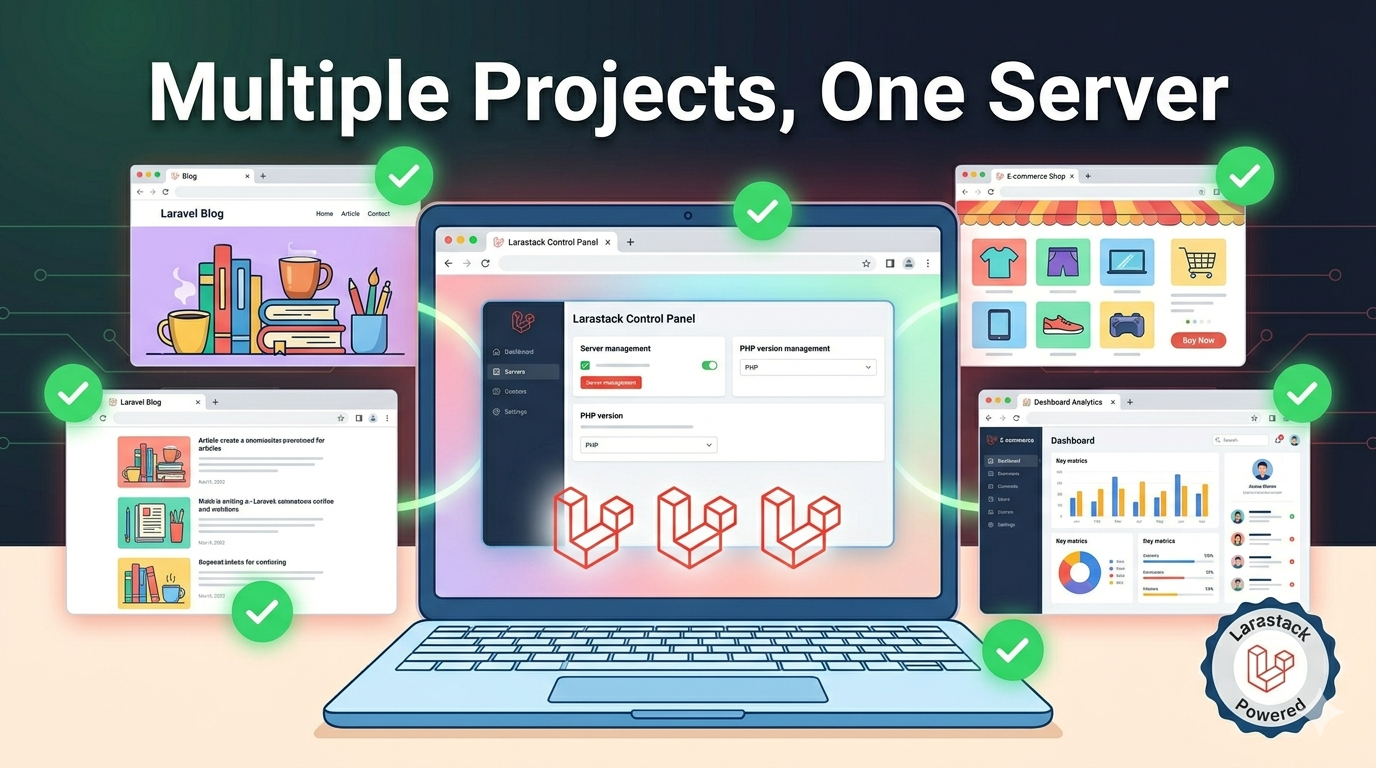
How to Manage Multiple PHP Projects Locally With Larastack on Windows
The Multi-Project Developer Problem
Most PHP developers aren't working on just one project. There's a client's WordPress site, a personal Laravel app, a legacy CodeIgniter project, and maybe an API you're building for fun. Each needs its own database, its own web root, and sometimes its own PHP configuration.
Managing all of this on a single Windows machine used to mean juggling virtual hosts in Apache, editing hosts files, and restarting services constantly. With Larastack, the process is dramatically simpler.
Setting Your Web Root
Larastack's default web root is the www folder inside the Larastack directory. To point it at any project on your machine:
- Open the Larastack control panel
- Navigate to Project Manager and click Set Web Root
- Browse to your project folder (for example: C:\Projects\mylaravel\public)
- Click Apply
Your project is immediately accessible at http://localhost:8084. No restart required.
Running Two Projects Simultaneously
Larastack handles your primary project on port 8084. For a second project running at the same time, use PHP's built-in development server:
Open a terminal in your second project's root folder and run:
php -S localhost:8085 -t public/
Now both projects are accessible simultaneously:
- Project 1: http://localhost:8084
- Project 2: http://localhost:8085
For a third project, use port 8086, and so on.
Using Custom Local Domains (Optional)
For cleaner local URLs, you can add entries to your Windows hosts file at C:\Windows\System32\drivers\etc\hosts:
127.0.0.1 myapp.local 127.0.0.1 clientsite.local 127.0.0.1 ecommerce.local
After saving, each of these domains resolves to localhost and can be served by your Larastack or PHP built-in server instances.
One Database Per Project: The Right Way to Isolate Data
Create a separate MySQL database for every project via phpMyAdmin. Use descriptive, consistent naming:
- project_laravel_blog
- project_woo_clientname
- project_crm_internal
This keeps data completely isolated, prevents accidental cross-project queries, and makes it easy to drop and recreate a database without affecting other projects.
Quick Project Switching With a Batch File
Create a simple batch file (switch.bat) to change your active project with one command:
@echo off set WEBROOT=C:\Projects%1\public echo Switching Larastack web root to %WEBROOT% cd C:\Larastack larastack.exe --webroot="%WEBROOT%"
Run it from CMD as: switch.bat mylaravel
Frequently Asked Questions
How many projects can I run simultaneously with Larastack? There's no hard limit. Each additional project uses a separate port via PHP's built-in server. Memory is your only practical constraint.
Can each project use a different PHP configuration? Each built-in server instance inherits from Larastack's php.ini. For project-specific overrides, use a .user.ini file in the project root.
Do I need to restart Larastack when switching projects? No. Changing the web root in the Project Manager applies immediately without restarting the server.