phpMyAdmin Complete Guide: Manage Your MySQL Database Like a Pro with Larastack
What Is phpMyAdmin and Why Does It Matter?
phpMyAdmin is the most widely used web-based MySQL management tool in the world. Instead of writing every database operation in a terminal, it gives you a full graphical interface for creating databases and tables, running SQL queries, importing and exporting data, managing users and permissions, and visualizing table relationships.
Larastack includes phpMyAdmin pre-installed and pre-configured. Once your servers are running, access it immediately at: http://localhost:8084/phpmyadmin
Login credentials: Username: root — Password: leave blank
Creating a New Database
- Click New in the left sidebar
- Type your database name (use lowercase with underscores, e.g., myproject_db)
- Set the collation to utf8mb4_unicode_ci — this supports full Unicode including emoji
- Click Create
Your database appears immediately in the left panel.
Creating Tables
- Select your database in the left panel
- Enter a table name and number of columns in the form, then click Go
- Define each column: name, data type (INT, VARCHAR, TEXT, DATETIME), length, and whether it can be null
- Set your primary key on the id column and enable AUTO_INCREMENT
- Click Save
Running SQL Queries
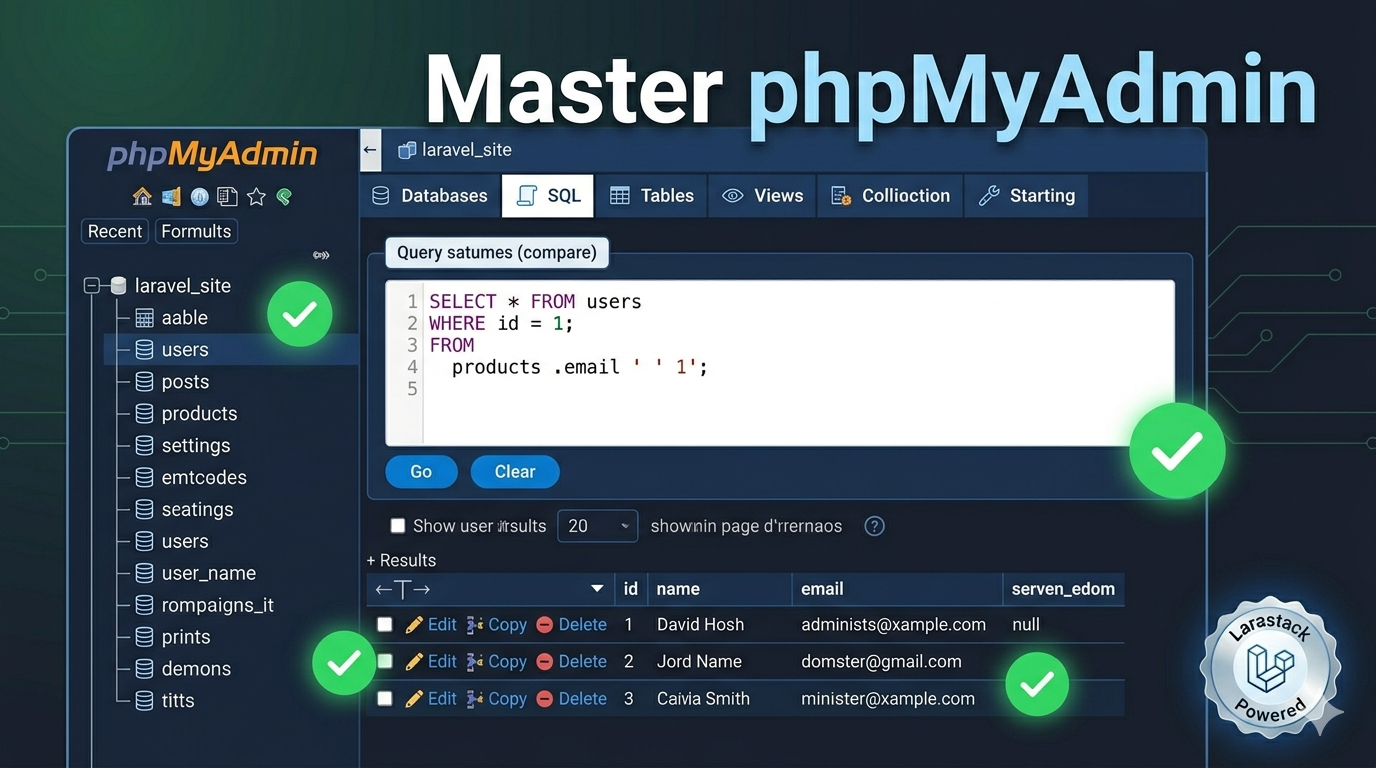
Click the SQL tab at the top to run raw queries against any database or table. This is the fastest way to test queries before writing them into application code:
SELECT * FROM users WHERE status = 'active' ORDER BY created_at DESC LIMIT 20;
Results display in a paginated table. You can export query results directly, edit cells inline, and copy queries for use elsewhere.
Importing Data
Use the Import tab to load data from .sql dump files or .csv exports:
- Select your target database in the left panel
- Click the Import tab
- Click Choose File and select your .sql or .csv file
- Click Go
Importing a full database backup typically takes just a few seconds for development-sized datasets.
Exporting a Database Backup
- Select your database in the left panel
- Click the Export tab
- Choose Quick export method and SQL format for a standard backup
- Click Go to download the .sql file
Keep regular exports of your local databases, especially before running migrations that alter table structure.
Managing Users and Privileges
Go to User Accounts from the phpMyAdmin home screen to:
- Create new database users
- Assign specific privileges per database
- Change passwords
- Delete users no longer needed
Best practice: create a dedicated user for each project rather than using root for everything. This mirrors a real production environment and is better security hygiene even locally.
Pro Tips for phpMyAdmin Power Users
Use the Designer tab to generate a visual entity-relationship diagram of your tables. This is invaluable when working with a database you didn't design yourself.
Use the Search tab to perform a full-text search across every table in a database simultaneously — great for finding where specific data lives in an unfamiliar codebase.
Use the Operations tab to rename a database, copy it to a new name, or check table overhead. Copying a database is the fastest way to create a backup before risky migrations.
Frequently Asked Questions
What is the default phpMyAdmin login for Larastack? Username is root and password is blank (empty). No password is set by default on the local MySQL server.
Can I create multiple databases in phpMyAdmin? Yes. There is no limit. Create one database per project for clean isolation.
How do I reset a table without deleting it? Select the table, click the Operations tab, and use the "Empty the table" option. This truncates all rows but keeps the table structure intact.